To be able to register a staff, student, or parent you need to have admin privilege, which means you must have signed into a Super Admin or Admin portal.
Register a Student
In order to register a student, there are some data required by Edu-Slick. Student Registration data required comprises information which are student personal information, contact information, and parent/guardian information. Below is the step-by-step guide on how to register a student.
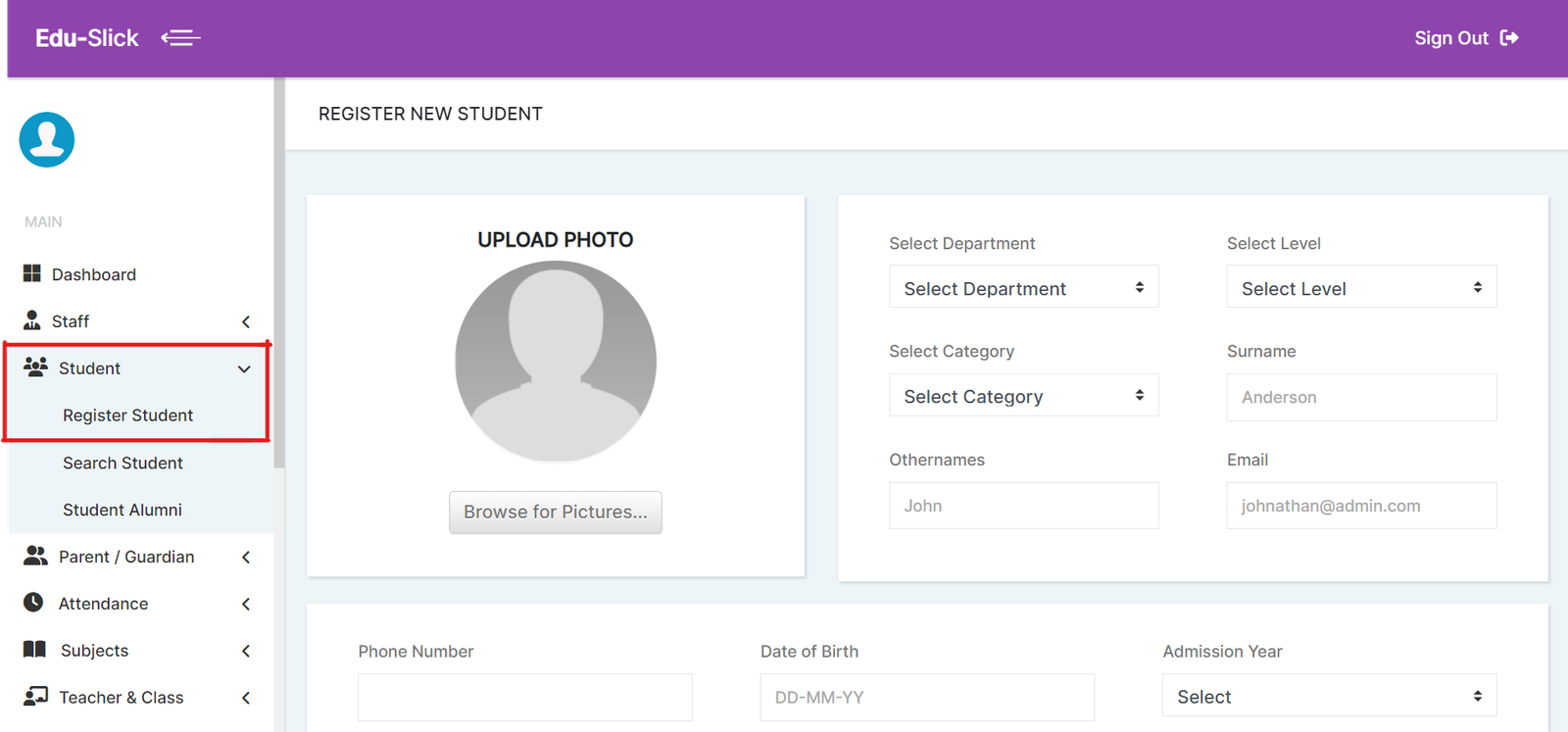
- On the main menu, you will find a menu option named Student, clicking on this option brings a drop-down menu.
- Click on Register Student and this will redirect you to the student registration page.
- Fill in the student information on the page (note that some input fields are mandatory).
Create or Assign a Parent / Guardian
- The parent/guardian section is where you can assign a parent to a student. You do not need to create a new parent profile if the parent has been already registered/assigned to an existing student. In this case, what you need to do is to click on the Assign Parent/Guardian button and select the parent you want to assign. You can use the search function to quickly find a parent.
- If the parent/guardian is not existing, then you can click on the Create New button and then fill in the required information.
- You can now click on Register button to submit the student information.
Register a Staff
To register a staff, there are some data that are essential to be filled in on Edu-Slick School Management Software. The Staff Registration includes; staff personal information, Next of kin, and bank account details for salary payment purposes. The procedure on how to go about the registration is as follows.
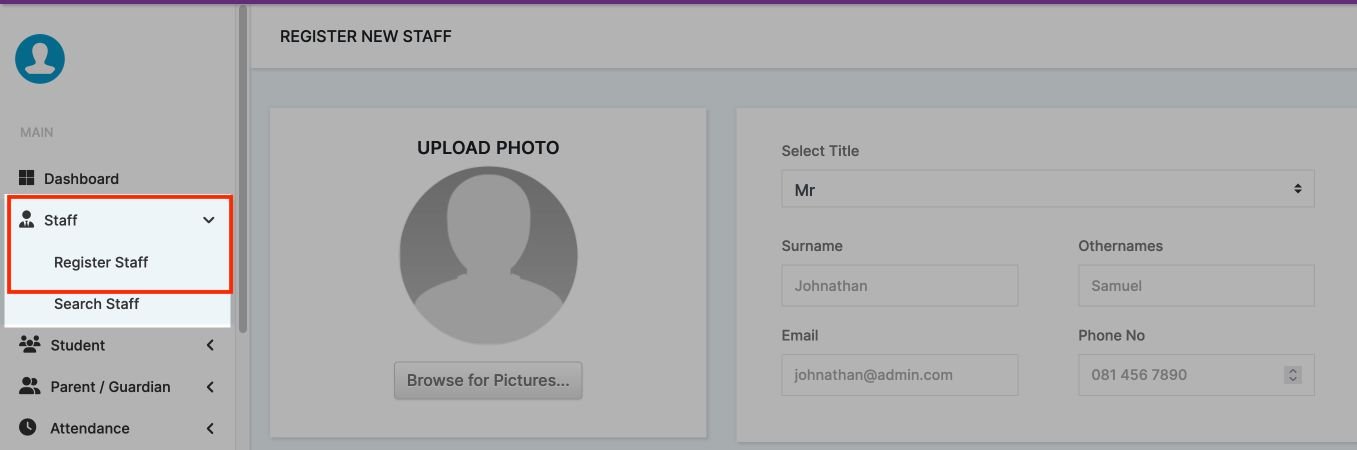
- As shown in the screenshot below on the main menu is a Staff option, this option shows a drop-down after a click.
- Click on Register Staff and this will take you to the staff registration page.
- Fill in the staff information on the page (note that some input fields are mandatory).
- Click the register button to submit your information
Register a Parent
A parent can be registered on Edu-Slick after you must have gotten the parent's basic information. Follow the step-by-step procedure on how to register a parent.
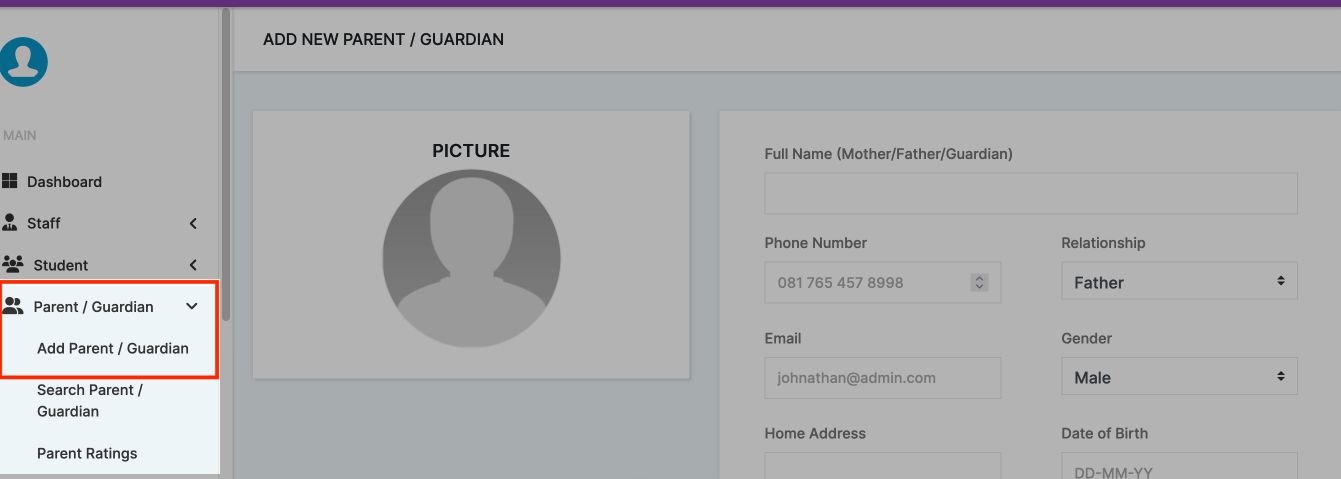
- As displayed below, on the main menu is Parent option, this option shows a drop-down after a click.
- Click Register Parent and this will direct you to the parent registration page.
- Fill in the parent basic details on the page (note that some input fields are required).
- Click the Submit button to complete your registration.